
You’re driving home from work when traffic suddenly crawls. No warning. No explanation. As you inch forward, you’re wondering what the heck caused it.
Guess what? Your Android phone works the exact same way.
When it starts slowing down, we all start playing the guessing game.
- In Part 1, we tackled network and Wi-Fi issues.
- In Part 2, we’re looking at another major culprit that causes big headaches: Your installed apps and internal storage space.
Slowdown on the Digital Highway: Why Storage Affects Phone Speed
Just like one stalled car can create a massive backup.

Your phone’s storage behaves the same way. When it gets too full, your entire device struggles. This is the main reason why your Android is running slowly:
- Apps take forever to open, or crash.
- Games lag or just won’t load at all.
- You miss capturing a moment because your device says, “Storage full — can’t take photo.”
- The whole device starts freezing or stuttering.
The great news: You can easily fix Android phone lag without buying a new device!
Step 1: Find Out What’s Taking Up Space (The Snapshot)
Before you can clean up, you need to see the mess! Here’s how to check your Samsung or Android storage breakdown:
- Open Settings.
- Search for Storage, Device Care, or Battery and Device Maintenance.
- Review what’s taking up the most space (usually Apps, Photos/Videos, Downloads, and System files).
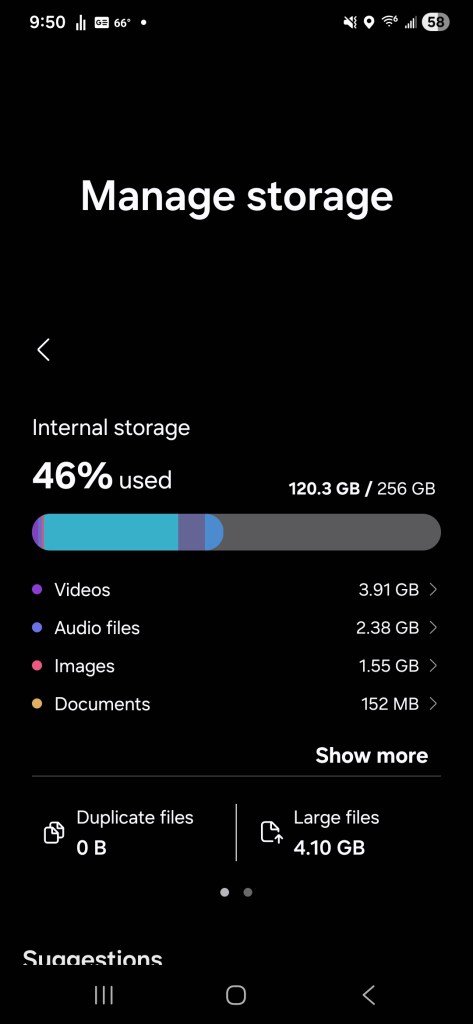
Now you know where to focus your cleanup efforts!
Now you know where to focus your cleanup efforts! If you want to dive deeper into how your phone handles files, check the official steps on how to clear up space on Android. You can explore how your phone organizes files. You can find them directly from the source.
Step 2: Uninstall Apps That Are Unused (Fastest Speed Boost)
Many apps you download sit around, unused, taking up storage and sometimes even running quietly in the background. They are the easiest thing to clean up and will quickly help your slow Android phone.
A. Uninstall Through the App Drawer (Super Quick Method)
- Find the app icon on your home screen or in your App Drawer.
- Tap and hold the app icon.
- Look for the Uninstall option and tap it.Samsung users: you might need to long-press → tap the ⓘ (App Info) → then tap Uninstall.

B. Use the Play Store to Find Largest Apps
This is the best way to identify the biggest space hogs:
- Open the Play Store.
- Tap your Profile picture → Go to Manage apps & device → Manage.
- Tap the sort filter and choose Size to find the biggest apps you can delete.
A Quick Note on System Apps: If you don’t see an Uninstall button, the app is critical. You can usually Disable it, but leave it alone if you’re unsure.
Step 3: Clear App Cache to Fix App Lag and Crashes
Cache is temporary data that helps apps load faster, but when it grows too large, it can actually make your apps feel sluggish.
A. Clear Cache Per App (The Safest Way to Speed Up Android)
- Go to Settings → Apps → Pick a specific app → Storage → Tap Clear cache.
- Important: Do not tap Clear data! Tapping “Clear data” will wipe your login info and settings. Just clear the cache!

Step 4: Delete Hidden Clutter (Free Up Space Immediately)
Three areas consistently pile up old, unnecessary files:
- The Downloads Folder: Open your Files or My Files app → Downloads. Delete old PDFs, images, and random files.
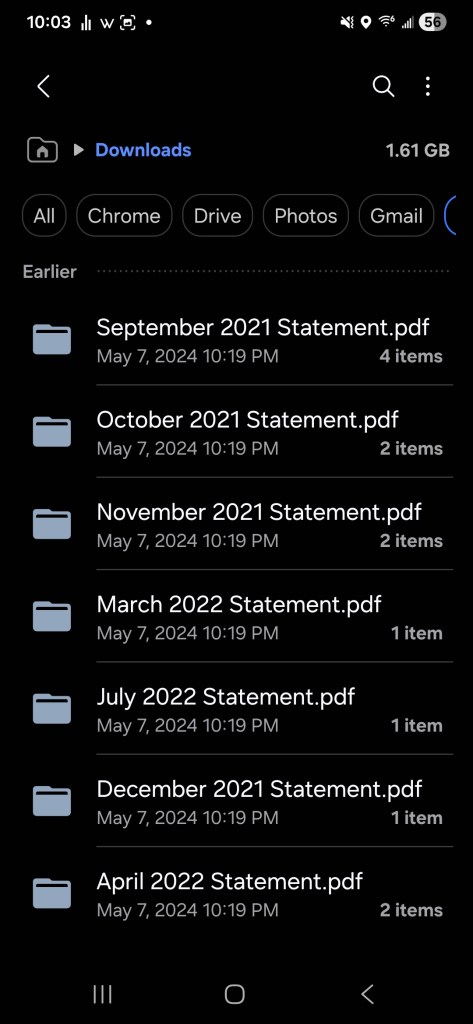
- Messaging App Media: WhatsApp and other apps quietly store every photo and video you’ve received. Check their internal Storage and Data settings.
- Screenshots and Recordings: Check your Images → Screenshots and Videos → Screen recordings folders—these video files are huge!
Step 5: Long-Term Fixes for Low Storage Space
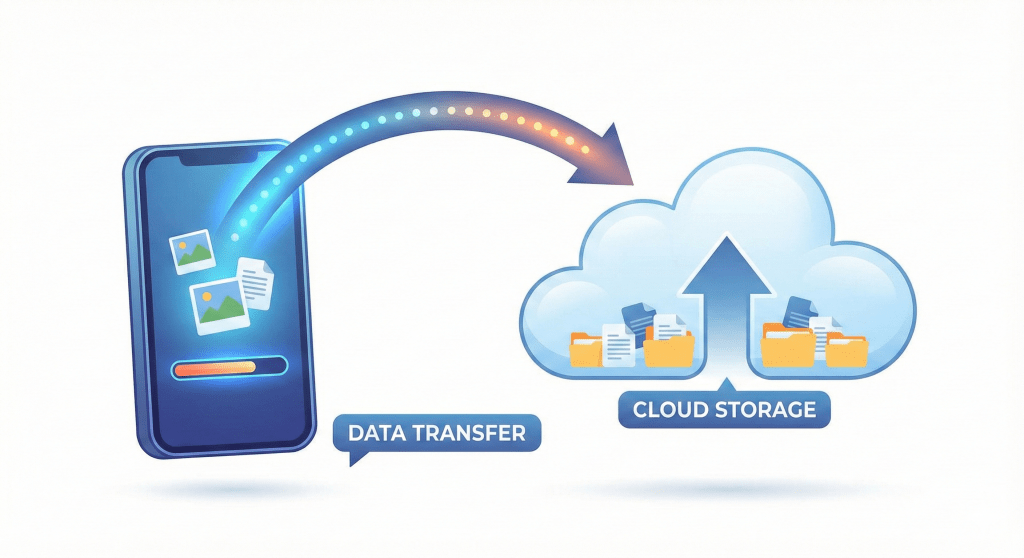
If photos and videos are slowing your phone down, you need a plan to move them off your device.
📸 Cloud Storage (The Best Long-Term Solution)
Services like Google Photos make it easy to free up storage space safely.
- Action: If you use Google Photos, open the app and tap Free up space. This safely moves the backed-up media off your physical phone. To ensure you understand the process completely, you can learn how to safely back up photos with Google Photos on the official help site.
💾 USB-C Flash Drive
Use a USB-C flash drive to copy files from your Files app directly to external storage—a great way to keep media archived without using the cloud.
❓ Quick Fix FAQ: Android Performance Questions
| Question | Jay’s Tech Answer |
| Q: Will clearing the cache log me out of my apps? | A: No! Clearing the cache is safe. It only deletes temporary files. You won’t lose your login info or personal settings. |
| Q: How often should I clear my app cache? | A: Once every few months is usually enough. You can also clear it when a specific app starts crashing or acting glitchy. |
| Q: What happens if I do tap “Clear data”? | A: It will erase all the app’s saved information: your login, settings, game progress, and stored files. Avoid this unless the app is totally broken. |
| Q: My storage is almost full. How low is too low? | A: Try to keep at least 10% of your total storage free. When you get below that, the slowdowns get much worse. |
| Q: I deleted files, but my phone is still slow! | A: Try a simple restart first. If it’s still slow, it might be an issue from Part 3 (malware/hidden apps). |
What Did You Find?
I bet you found a forgotten download, a giant screen recording, or an app you haven’t touched in a year!
Let me know in the comments: What was the biggest space-hog on your device? Share your results—someone else may be dealing with the same slowdown.
Coming Up: Part 3
Next time, we’ll break down another major slowdown cause: malware, risky apps, and hidden threats.
 Jay's Tech Journey
Leave a comment