
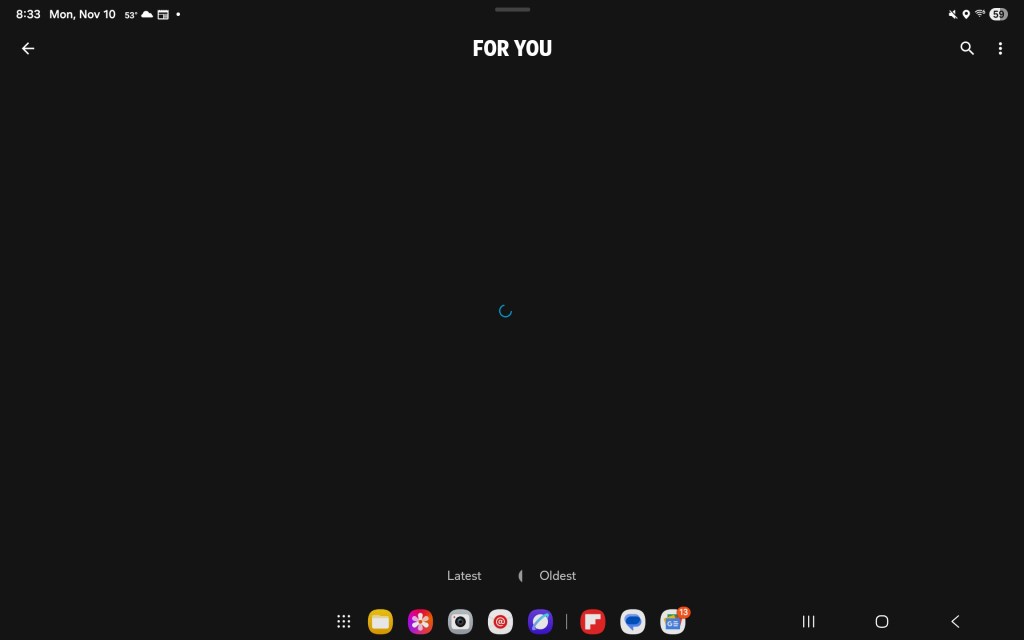
We’ve all been there — scrolling through social media, checking prices, or trying to watch a quick video. Everything works fine until that spinning circle shows up. It keeps loading… then suddenly the screen says You’re not connected.
Before assuming your phone is failing or needs to be replaced, take a minute. In most cases, the problem isn’t the device — it’s the network connection.
Don’t Panic
When something stops loading, it’s easy to think the worst. But a slow Android is often caused by simple connection issues. Whether you’re using mobile data or home Wi-Fi, these steps usually get things working again.
📶 Mobile Network Troubleshooting
1️⃣ Step 1 – Try a Different App or Website
If another app loads normally → the issue is with the first app or site.
2️⃣ Step 2 – Check Your Signal Strength
If you only see one or two bars, try moving closer to a window or an open space. Thick walls and some buildings weaken mobile signal.
3️⃣ Step 3 – Quick Connection Reset
Turn Airplane Mode ON → wait 10 seconds → turn it OFF.
This forces your phone to reconnect to the nearest tower.
4️⃣ Step 4 – Restart Your Device
A restart clears small glitches and re-establishes your network link.
5️⃣ Step 5 – Check for Carrier Outages or Data Throttling
If your data is slow during peak hours or after reaching a monthly limit, your carrier may temporarily reduce speeds.
🔄 How to Toggle Airplane Mode
Here’s a real example of how I toggle Airplane Mode whenever my connection freezes. This simple step has fixed many slow-loading moments for me.
Watch the quick video below:
📡 Home Wi-Fi Troubleshooting
Note: These steps apply to your home Wi-Fi. If you’re at work, in a store, or on public Wi-Fi, the business controls the network. This means you can’t restart their router or adjust their equipment.
1️⃣ Step 1 – Check That Wi-Fi Is On
Make sure your phone is connected to the correct network.
2️⃣ Step 2 – Move Closer to the Router
Distance, walls, floors, and appliances can weaken Wi-Fi signals.
3️⃣ Step 3 – Quick Reset (Airplane Mode)
Turn Airplane Mode ON → wait → OFF.
This refreshes the Wi-Fi handshake.
4️⃣ Step 4 – Restart Your Router or Modem
Unplug the router for 30 seconds → plug it back in → wait for the lights to stabilize.
5️⃣ Step 5 – Check for Wi-Fi Overload or Interference
Too many devices streaming or gaming can slow the entire network.
Microwaves, Bluetooth speakers, and cordless phones can interfere too.
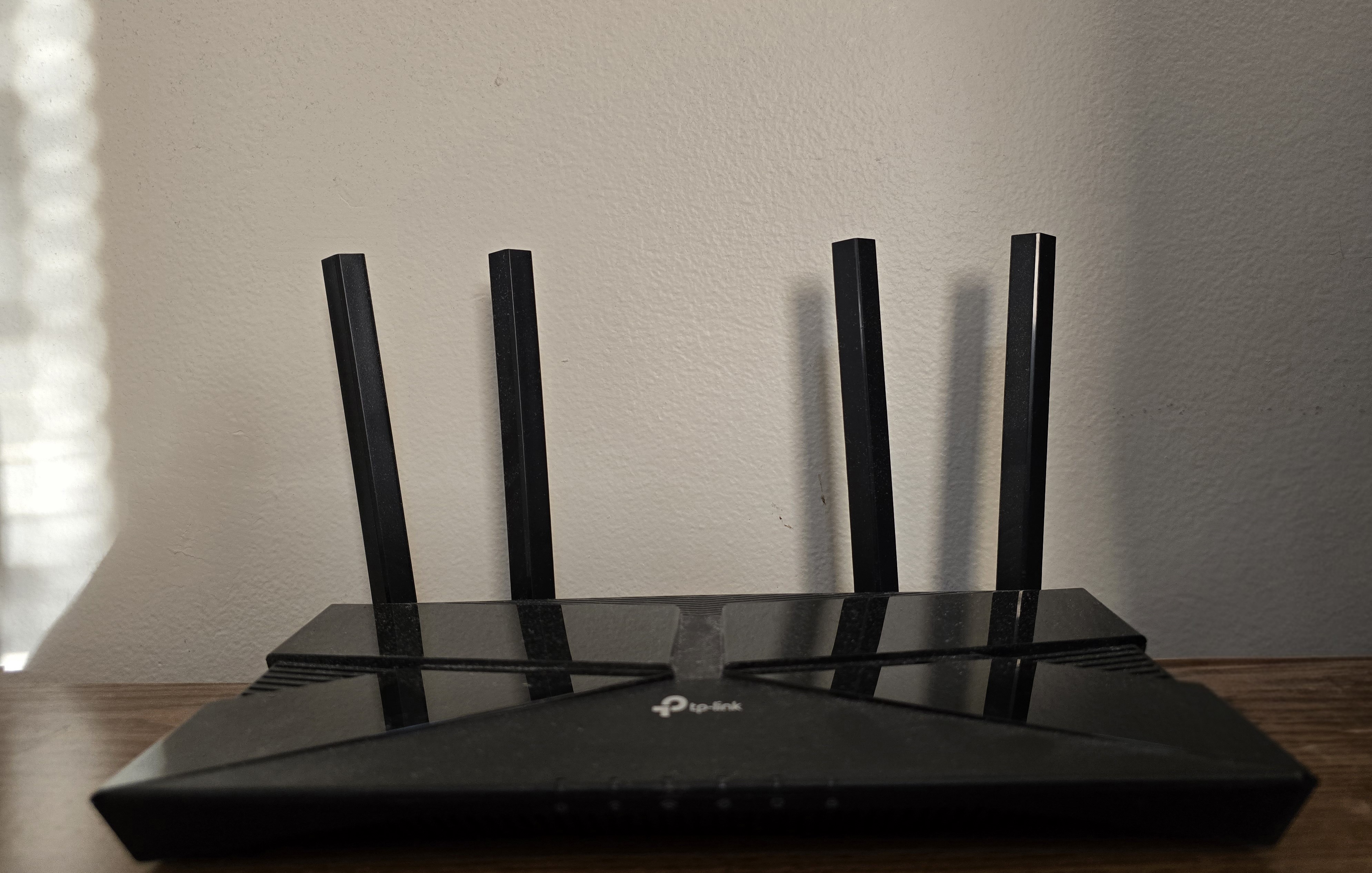
Home Wi-Fi Router: Make sure the power light is on. If no lights appear at all, the router may be unplugged or the outlet may not be supplying power.

Sometimes it’s not your phone — it’s the network being overloaded or temporarily disconnected.
💡 Real-World Experience
I’ve been in stores where my connection drops every time, whether I’m on their Wi-Fi or using mobile data. It’s frustrating when you’re trying to look up something quickly.
My go-to fix? Airplane Mode. Turning it on and off refreshes everything and gets the connection back more often than not.
🔍 When All Else Fails
- Your mobile carrier is having an outage.
- Your data speed can be slowed if you hit your plan limit.
- Your home network is overloaded by multiple devices.
- Your router or modem is outdated or failing.
🧭 Summary
A slow Android phone doesn’t always mean the device is the problem. Start with these basics:
- Check your signal strength.
- Toggle Airplane Mode.
- Restart your device.
- Restart your router or modem.
- Check for outages or overloaded networks.
Most slow-loading issues can be solved with these steps. Part 2 will focus on storage, background apps, and performance — coming soon.
❓ Frequently Asked Questions (FAQ)
Here are answers to the most common questions people have about slow Android connections.
1️⃣ Why does Airplane Mode fix network issues?
It disconnects all signals and forces a clean reconnect once it’s turned off.
2️⃣ How do I know if my carrier is throttling my data?
If you’ve reached your data limit, your speeds may temporarily slow down. Check your carrier’s app.
3️⃣ Does restarting my phone really help?
Yes — it clears temporary files and resets your network connections.
4️⃣ How can I tell if the router or Wi-Fi is the problem?
If all devices in your home are slow, it’s likely the Wi-Fi, not your phone.
5️⃣ Should I reset my network settings?
Only if nothing else works. This clears saved Wi-Fi networks and Bluetooth devices.
6️⃣ Will these steps work on all Android devices?
Yes — these steps apply to most Android phones and tablets.
7️⃣ What if none of these steps work?
You may have a hardware issue or your provider may be down. Contact your carrier, ISP, or a trusted technician.

 Jay's Tech Journey
Leave a reply to Why is My Android Running Slowly? Part 2 — Apps & Storage – Jay's Tech Journey Cancel reply